
Hey guys its quiet easy, Just remember these steps
For an Excel formula that needs to reference a cell in a different worksheet in the same workbook, use the following format for your formula.
SheetName!CellAddress (Precede the cell address with the worksheet name, and follow it with an exclamation point).
Note: For worksheet names that include one or more spaces, you will need to enclose it in single quotation marks. The following is a formula that refers to a cell on a sheet by the name of Monthly Sales:
=B4*’Monthly Sales’!A12
Showing posts with label MS Excel. Show all posts
Showing posts with label MS Excel. Show all posts
Thursday, July 15, 2010

How to remove duplicate values from Excel 2007
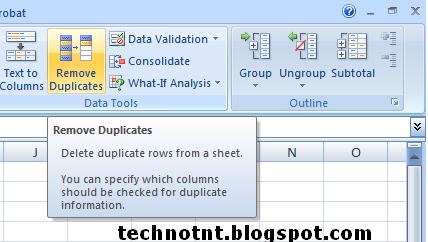
Removing duplicates from a spreadsheet was a timely task, till now but fortunately with Excel 2007 this can be done in fraction of seconds. Here’s how…
1. First of all Select the range of data in your spreadsheet.
2. Now go to Data Ribbon.
3. In the Data Tools section, click Remove Duplicates.
4. In the Remove Duplicates dialog box, check the column(s) you want searched for duplicates. You should check all columns that need to be a match to be considered a duplicate to prevent the accidental removal of data you wish to keep.
5. Click OK.
A message will tell you how many duplicate values were found and removed and how many unique values remain in your data. If the result is not what you desired, hit Ctrl+Z to undo the removal of the duplicates and try again.
Friday, July 24, 2009
How to Calculate Compound Interest in Excel
Compound interest is the amount that a rupees invested now will be worth in a given number of periods at a given compounded interest rate per period. Although Microsoft Excel does not include a function for determining compound interest, you can use the following formula for this calculation:
=PV*(1+R)^N
where PV is present value, R is the interest rate, and N is the number of investment periods.
=PV*(1+R)^N
where PV is present value, R is the interest rate, and N is the number of investment periods.
Friday, April 3, 2009
Adding Date Picker in Excel

This is how to add datepicker in excel for selecting the date from Calender.
- In sheet, right click, and tool bar entry points
- Date difference calculator while you mouse over the different days
- Options to turn on and off entry points and appearance
Installation steps
- unzip the XLA to your XLSTARTUP folder, it's located in the Microsoft office directory: C:\Program Files\Microsoft Office\OFFICE11\XLSTART
- Restart Excel
Calendar F.A.Q. ...answers to questions you're probably thinking about right now!
What's this for and how does it work?
Useful for people who use dates in Excel. Allows you to see a calendar view and pick from it to change a cell's value.
What Version of Excel do I need for this to work?
Should work back to at least Excel 2000, maybe even before.
Where are all the entry points to the calendar?
There are 3 places where you can access the calendar from: right click menu, on the tool bar, and particular cell selections which include: selecting a cell with a date in it, selecting a cell underneath a cell with a date in it, and selecting a cell underneath a cell that has some form of the word "date" in it. You can adjust the entry points in the options menu accessible on the upper right hand corner of the calendar.
Download The File samradDatePicker.xla
Courtesy : http://www.isamrad.com
Wednesday, March 18, 2009
how to convert number into text in excel
How to create the sample function Called SpellNumber
Start Microsoft Excel.
Press ALT+F11 to start the Visual Basic Editor.
On the Insert menu, click Module.
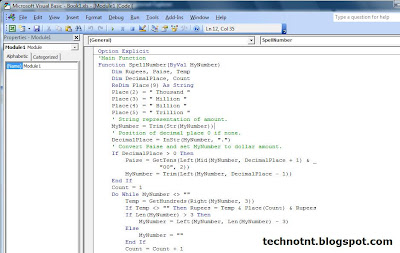
Type the following code into the module sheet.
------------------------------------------------------------------------------
Option Explicit
'Main Function
Function SpellNumber(ByVal MyNumber)
Dim Rupees, Paise, Temp
Dim DecimalPlace, Count
ReDim Place(9) As String
Place(2) = " Thousand "
Place(3) = " Million "
Place(4) = " Billion "
Place(5) = " Trillion "
' String representation of amount.
MyNumber = Trim(Str(MyNumber))
' Position of decimal place 0 if none.
DecimalPlace = InStr(MyNumber, ".")
' Convert Paise and set MyNumber to dollar amount.
If DecimalPlace > 0 Then
Paise = GetTens(Left(Mid(MyNumber, DecimalPlace + 1) & _
"00", 2))
MyNumber = Trim(Left(MyNumber, DecimalPlace - 1))
End If
Count = 1
Do While MyNumber <> ""
Temp = GetHundreds(Right(MyNumber, 3))
If Temp <> "" Then Rupees = Temp & Place(Count) & Rupees
If Len(MyNumber) > 3 Then
MyNumber = Left(MyNumber, Len(MyNumber) - 3)
Else
MyNumber = ""
End If
Count = Count + 1
Loop
Select Case Rupees
Case ""
Rupees = "Zero Rupees"
Case "One"
Rupees = "One Rupee"
Case Else
Rupees = Rupees & " Rupees"
End Select
Select Case Paise
Case ""
Paise = " and Zero Paise"
Case "One"
Paise = " and One Paisa"
Case Else
Paise = " and " & Paise & " Paise"
End Select
SpellNumber = Rupees & Paise
End Function
' Converts a number from 100-999 into text
Function GetHundreds(ByVal MyNumber)
Dim Result As String
If Val(MyNumber) = 0 Then Exit Function
MyNumber = Right("000" & MyNumber, 3)
' Convert the hundreds place.
If Mid(MyNumber, 1, 1) <> "0" Then
Result = GetDigit(Mid(MyNumber, 1, 1)) & " Hundred "
End If
' Convert the tens and ones place.
If Mid(MyNumber, 2, 1) <> "0" Then
Result = Result & GetTens(Mid(MyNumber, 2))
Else
Result = Result & GetDigit(Mid(MyNumber, 3))
End If
GetHundreds = Result
End Function
' Converts a number from 10 to 99 into text.
Function GetTens(TensText)
Dim Result As String
Result = "" ' Null out the temporary function value.
If Val(Left(TensText, 1)) = 1 Then ' If value between 10-19...
Select Case Val(TensText)
Case 10: Result = "Ten"
Case 11: Result = "Eleven"
Case 12: Result = "Twelve"
Case 13: Result = "Thirteen"
Case 14: Result = "Fourteen"
Case 15: Result = "Fifteen"
Case 16: Result = "Sixteen"
Case 17: Result = "Seventeen"
Case 18: Result = "Eighteen"
Case 19: Result = "Nineteen"
Case Else
End Select
Else ' If value between 20-99...
Select Case Val(Left(TensText, 1))
Case 2: Result = "Twenty "
Case 3: Result = "Thirty "
Case 4: Result = "Forty "
Case 5: Result = "Fifty "
Case 6: Result = "Sixty "
Case 7: Result = "Seventy "
Case 8: Result = "Eighty "
Case 9: Result = "Ninety "
Case Else
End Select
Result = Result & GetDigit _
(Right(TensText, 1)) ' Retrieve ones place.
End If
GetTens = Result
End Function
' Converts a number from 1 to 9 into text.
Function GetDigit(Digit)
Select Case Val(Digit)
Case 1: GetDigit = "One"
Case 2: GetDigit = "Two"
Case 3: GetDigit = "Three"
Case 4: GetDigit = "Four"
Case 5: GetDigit = "Five"
Case 6: GetDigit = "Six"
Case 7: GetDigit = "Seven"
Case 8: GetDigit = "Eight"
Case 9: GetDigit = "Nine"
Case Else: GetDigit = ""
End Select
End Function
-------------------------------------------------------------------------------
How to use the SpellNumber sample function
To use the sample functions to change a number to written text, use one of the methods demonstrated in the following examples:
Method 1: Direct Entry
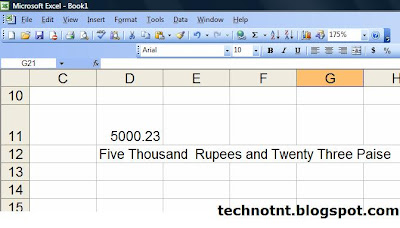
You can change 32.50 into "Thirty Two Dollars and Fifty Cents" by entering the following formula into a cell:
=SpellNumber(32.50)
Method 2: Cell reference
You can refer to other cells in the workbook. For example, enter the number 32.50 into cell A1, and type the following formula into another cell:
=SpellNumber(A1)
Method 3: Paste Function or Insert Function
To enter a custom function into a worksheet, you can use Paste Function in Excel 2000, or you can use Insert Function in Excel 2002 and in Excel 2003.
Start Microsoft Excel.
Press ALT+F11 to start the Visual Basic Editor.
On the Insert menu, click Module.
Type the following code into the module sheet.

------------------------------------------------------------------------------
Option Explicit
'Main Function
Function SpellNumber(ByVal MyNumber)
Dim Rupees, Paise, Temp
Dim DecimalPlace, Count
ReDim Place(9) As String
Place(2) = " Thousand "
Place(3) = " Million "
Place(4) = " Billion "
Place(5) = " Trillion "
' String representation of amount.
MyNumber = Trim(Str(MyNumber))
' Position of decimal place 0 if none.
DecimalPlace = InStr(MyNumber, ".")
' Convert Paise and set MyNumber to dollar amount.
If DecimalPlace > 0 Then
Paise = GetTens(Left(Mid(MyNumber, DecimalPlace + 1) & _
"00", 2))
MyNumber = Trim(Left(MyNumber, DecimalPlace - 1))
End If
Count = 1
Do While MyNumber <> ""
Temp = GetHundreds(Right(MyNumber, 3))
If Temp <> "" Then Rupees = Temp & Place(Count) & Rupees
If Len(MyNumber) > 3 Then
MyNumber = Left(MyNumber, Len(MyNumber) - 3)
Else
MyNumber = ""
End If
Count = Count + 1
Loop
Select Case Rupees
Case ""
Rupees = "Zero Rupees"
Case "One"
Rupees = "One Rupee"
Case Else
Rupees = Rupees & " Rupees"
End Select
Select Case Paise
Case ""
Paise = " and Zero Paise"
Case "One"
Paise = " and One Paisa"
Case Else
Paise = " and " & Paise & " Paise"
End Select
SpellNumber = Rupees & Paise
End Function
' Converts a number from 100-999 into text
Function GetHundreds(ByVal MyNumber)
Dim Result As String
If Val(MyNumber) = 0 Then Exit Function
MyNumber = Right("000" & MyNumber, 3)
' Convert the hundreds place.
If Mid(MyNumber, 1, 1) <> "0" Then
Result = GetDigit(Mid(MyNumber, 1, 1)) & " Hundred "
End If
' Convert the tens and ones place.
If Mid(MyNumber, 2, 1) <> "0" Then
Result = Result & GetTens(Mid(MyNumber, 2))
Else
Result = Result & GetDigit(Mid(MyNumber, 3))
End If
GetHundreds = Result
End Function
' Converts a number from 10 to 99 into text.
Function GetTens(TensText)
Dim Result As String
Result = "" ' Null out the temporary function value.
If Val(Left(TensText, 1)) = 1 Then ' If value between 10-19...
Select Case Val(TensText)
Case 10: Result = "Ten"
Case 11: Result = "Eleven"
Case 12: Result = "Twelve"
Case 13: Result = "Thirteen"
Case 14: Result = "Fourteen"
Case 15: Result = "Fifteen"
Case 16: Result = "Sixteen"
Case 17: Result = "Seventeen"
Case 18: Result = "Eighteen"
Case 19: Result = "Nineteen"
Case Else
End Select
Else ' If value between 20-99...
Select Case Val(Left(TensText, 1))
Case 2: Result = "Twenty "
Case 3: Result = "Thirty "
Case 4: Result = "Forty "
Case 5: Result = "Fifty "
Case 6: Result = "Sixty "
Case 7: Result = "Seventy "
Case 8: Result = "Eighty "
Case 9: Result = "Ninety "
Case Else
End Select
Result = Result & GetDigit _
(Right(TensText, 1)) ' Retrieve ones place.
End If
GetTens = Result
End Function
' Converts a number from 1 to 9 into text.
Function GetDigit(Digit)
Select Case Val(Digit)
Case 1: GetDigit = "One"
Case 2: GetDigit = "Two"
Case 3: GetDigit = "Three"
Case 4: GetDigit = "Four"
Case 5: GetDigit = "Five"
Case 6: GetDigit = "Six"
Case 7: GetDigit = "Seven"
Case 8: GetDigit = "Eight"
Case 9: GetDigit = "Nine"
Case Else: GetDigit = ""
End Select
End Function
-------------------------------------------------------------------------------
How to use the SpellNumber sample function
To use the sample functions to change a number to written text, use one of the methods demonstrated in the following examples:
Method 1: Direct Entry
You can change 32.50 into "Thirty Two Dollars and Fifty Cents" by entering the following formula into a cell:
=SpellNumber(32.50)
Method 2: Cell reference
You can refer to other cells in the workbook. For example, enter the number 32.50 into cell A1, and type the following formula into another cell:
=SpellNumber(A1)
Method 3: Paste Function or Insert Function
To enter a custom function into a worksheet, you can use Paste Function in Excel 2000, or you can use Insert Function in Excel 2002 and in Excel 2003.

Tuesday, September 18, 2007
Insert multiple lines in one cell

Insert multiple lines in one cell (1)
In Excel you can show multiple lines in one cell by clicking on [Alt]+[Enter] when you want to start a new line
Insert multiple lines in one cell (2)
The other way to do this is At the menu Format, Cells, there check the box Insert multiple lines here you can set more settings for the cell(s)
Subscribe to:
Posts (Atom)


